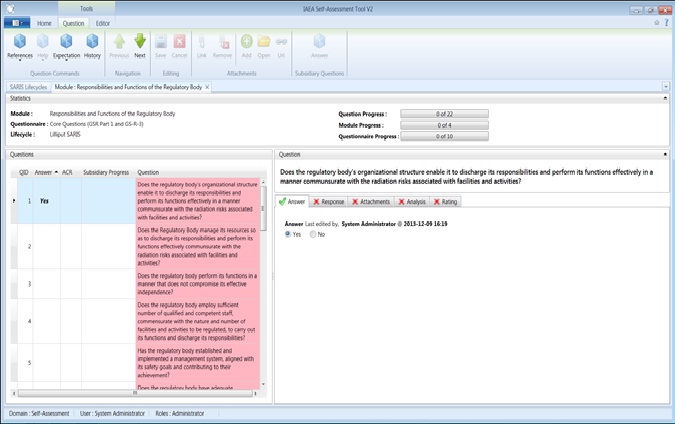
Introduction: Once the lifecycle is created and the respondent and analyst team have been created and assigned to their respective modules, the respondent team can start to provide their responses to the questions (phase II). The SARIS question sets are structured in such a way that there are primary and subsidiary questions. All primary questions are Boolean type questions and only YES or NO answer could be provided. When a YES/NO answer is saved, the respondent team is then expected to provide detail responses as a justification for the YES or NO answers, and attach relevant documents as necessary.
To respond to primary and subsidiary questions:
1. Log in to SARIS using your Respondent username and password provided by the Administrator.
2. Select the module you want to provide responses to from the list of lifecycles.
[To select modules, click the  symbol in front of the lifecycle name to get the questionnaires, and the same symbol in front of the questionnaire name to get the modules]
3. To open the primary questions, double-click on the Module Name and the Module [Title] tab page will open.
[You can also open the module by selecting it first and clicking the Open button in the Module Question group in the lifecycles page]
4. To respond to primary questions, do the following:
a. Provide YES or NO answer to a primary question by selecting the appropriate check box on the Answer tab page, and click the Save button in the Editing group to save your answer.
b. When additional tab pages (Response, Attachments, etc.) appear, do the following:
i. Provide detail text response in the Response tab page, as a justification for your YES or NO answer, and click the Save button to save your answer.
ii. Attach, or link to, all relevant documents that support your response in the Attachments tab page [For detail help on how to attach documents, please refer to the Attach Documents section]
Note: In the Module [title] tab page, only the Answer tab page appears until you provide and save the YES or NO answer.
Note: When you have provided (and saved) a Yes/No answer, detail response or attachment, the  symbol will be changed and the
  symbol will appear on the tab to indicate which tab pages have been completed.
Note: A primary question is considered to be complete only when YES or NO answer and detail response to justify the YES or NO answer have been provided, and relevant document(s) have been attached as necessary.
Note: The Analysis and Rating tabs are for use by the Analysis Team and therefore the Response Team is not expected to provide any input.
Note: When a question (primary/subsidiary) is complete, the default pink colour on the question at the left pane will be changed to green.
Note: Having completed responding to a primary question, i.e., having provided YES or NO answer, detail response to justify the YES or NO answer, and attached relevant document(s) as necessary, you need to respond to related subsidiary questions. [For detail help on how to respond to subsidiary questions, please refer to the Answer Subsidiary Questions section]
Response Editor Page Terminology
References: The IAEA Safety Standard page and paragraph used as references for the particular question in SARIS. Double-click on the document name will open the page of the paragraph.
Help: Shows any help provided for the question (mostly applicable for the IRIS variant)
Expectation: An expectation provided for compliance with the particular IAEA requirement/recommendation the question was based on.
History: Records the history of any modifications made to the responses, etc., when and by whom.
Link: For linking an attachment document with a particular question as documentary evidence (Refer to section 1.8 for details) (Note: To link an attachment document with a particular question, the document should be selected first in the ‘Attachments’ tab page)
Remove: Removes the link between a document and a particular question (Note: To remove the link of an attachment document from a particular question, the checkbox of the particular link should be selected in the ‘Attachments’ tab page)
Add: Adds new document in the list of attachments when a respondent team could not find a particular document in the attachments list (Refer to section 1.8 for details)
Open: (in standalone version) – opens the particular attachment document; (in network version) – saves a particular attachment document to a local drive
Url: (in a network version) - opens the particular attachment document; not used in standalone versions (not active)
Answer: Opens the subsidiary questions editor (Note: This button is active only for completed (‘green’ coloured) primary questions that have subsidiary questions) (Refer to section 1.7 for responding to subsidiary questions)

